Showing posts with label sap variant. Show all posts

Variants for report programs


A Report program can be executed in background in two ways:

Method 1:  First create a variant for the report.
                 Then Go to SE38-->Program-->Execute-->Background.
Method 2:  Go to sm36
                  Specify job name and Job class--> Step tab in the application tool bar
                  Specify program name
                  Specify variant
--> Save it-->Save the job-->
                 Will get a message saying ' job has been scheduled'.
                 Go to tcode -->sm37-->check scheduled checkbox-->Execute.


Protected by Copyscape Web Copyright Checker

Create a variant for Transaction code


The Transaction code variant is used to organize the initial Screens of SAP transactions, and is user specific. These types of variants can be used to pre-populate field(s) each and every time that particular transaction is accessed.

Example:
    A variant can be created for any transaction.
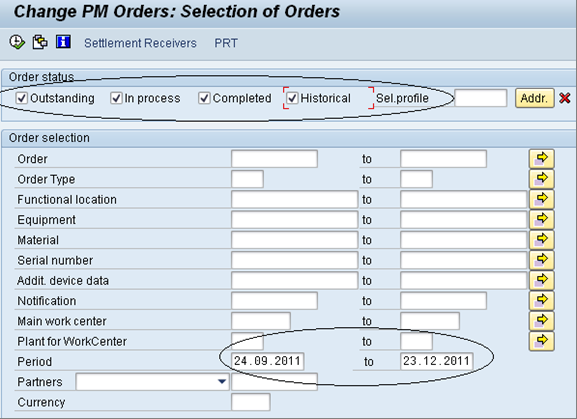
    As an example I have chosen IW38 (Change PM Orders) transaction.
  1. In the initial screen of the transaction, populate the search fields that you desire to be pre-populated.
  2. Click on the save button   
  3. Enter the Variant name and Description.
  4. Check the check boxes under ‘Required fields’ column for all the fields that  

            have to be pre-populated.
      Click on the save button     .

  1. Click on the variants button(


Creating a variant using Selection variables
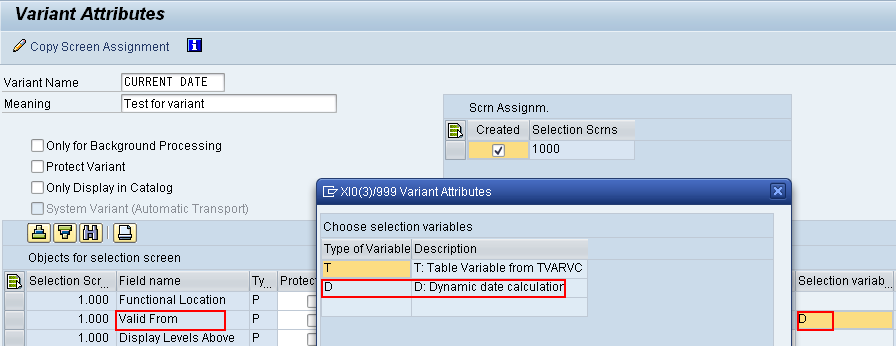
Variants can also be set up to hide field(s), make field as ‘required’  
well as lock in parameters into the fields that should not be changed. Fields that
are dynamic, such as date field, can also be set up so that a certain parameter
defaults or can be pre-populated based on requirement. These types of fields
are known as ‘Selection Variables’.

In this example , a variant will be created such that the ‘Valid From' date will
default to the current date.
  1. Open transaction IH01 (Functional Location structure display).
  2. While saving  select the variant name i.e. CURRENT DATE
  3. Click on the Save button      .


Protected by Copyscape Web Copyright Checker

Create a Layout Variant


A Layout variant can be used to pull in additional information into a list display and organize the information to a User’s specifications. This type of variant is again User specific. Layout variants can be created for any Transaction.

In this example, A Layout variant is created for transaction IW28( Change
Notification).

A Layout variant can be used to pull in additional information into a list display and organize the information to a User’s specifications. This type of variant is again User specific. Layout variants can be created for any Transaction.

In this example, A Layout variant is created for transaction IW28(Change
Notification).
On the initial screen, enter in the desired search criteria.
In this example I am entering the ‘Notification date range’ with ‘notification status’ as Outstanding and Completed.
1.  Click on the execute button      .
         On the initial screen, enter in the desired search criteria.
   In this example I am entering the ‘Notification date range’ with ‘notification
   status’ as Outstanding and Completed.
2.  Click on the execute button.

List of tables to store Variants:

TVARV --> for storing the variants (TVARVC- client specific)VARID --> Variant directoryVARIT --> Variant texts
             
Transaction and screen variants
Transaction variant
  • Transaction variant is a used to create some tailored version of standard SAP transaction without any actual modification i.e a standard transaction can be modified as per the requirement.
  • It can be used to hide fields, menu functions, screens, to supply individual fields with default values or to change the ready for input status of one or more fields.    
Transaction variant can be created in two steps:
      1) Create a Transaction variant in SHD0
      2) Attach the transaction variant to a transaction


Protected by Copyscape Web Copyright Checker

Variant


A Variant is a set of input fields for selection screen. When the program with the same set of input fields run multiple times its useful to save a variant for those fields.
Variants are an interface between the user and the selection screen. Variants can be created in Dialog mode and in background mode.
This not only saves time but avoid some manual mistakes while entering input.

  • Create a Variant for a Report program
    • Execute the Report Program which takes you to the selection screen.
    • Enter the appropriate values in the selection screen fields and click on the save icon.
    • Enter the Variant name and meaning full description.
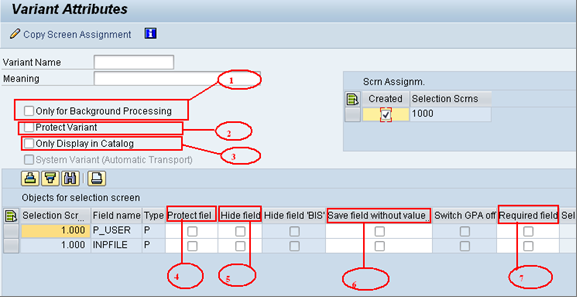
    • The meaning and use of various options in the variant.  


  1. If you select the field Background only, the variant can only be executed in the background. Otherwise, it can be run both in the background and online.
  2. If you select the field Protect variant, the variant can only be changed by the person who created it or last changed it. 
  3. If you select the field Do not display variant, the variant name appears in the directory, but not in the general input help.
  4. If you flag a field as 'Protected', the relevant selection criterion is protected against changes at runtime, i.e. when you start the program with variant
  5. However, in variant maintenance itself, the field is ready for input.
  6. Hide Field will allow the user to hide fields so that they do not appear on the search criteria screen.
  7.  Save field without values will make the field required ,but will not save data entered in the field.
  8. Required field: to make the fields mandatory.
Variants for report programs

A Report program can be executed in background in two ways:
Method 1:  First create a variant for the report.
                 Then Go to SE38-->Program-->Execute-->Background.
Method 2:  Go to sm36
                  Specify job name and Job class--> Step tab in the application tool bar
                  Specify program name
                  Specify variant
Save it-->Save the job-->
                 Will get a message  ' job has been scheduled'.
                 Go to tcode --->sm37--> check scheduled checkbox-->Execute.

Protected by Copyscape Web Copyright Checker